
When emails bounce, it means your email hasn’t been delivered, and it won't help you generate a lead. A higher bounce rate signals that your email lists aren't being built with verification and accuracy in mind.
The higher the bounce rate, the greater the chance that email service providers will see you as spam. This can only lead to a vicious cycle.
This Hunter playbook shows you how to take concrete steps that reduce your bounce rate, get your emails landing in more of the right inboxes, and consistently generate leads.
Why this matters
A consistently high bounce rate damages your sender reputation, leading to lower deliverability and more bounces.
In Hunter's State of Email Outreach 2026, the average bounce rate was 3.6%.
But you should aim to keep yours below 2%, because crossing that threshold and staying there actively damages your sender reputation with every campaign you send.
Your plan
- What you'll achieve: A cleaned, re-launchable lead list and a clear plan to keep your bounce rate below 2% going forward
- Features used: Email Verifier · Bulk Email Verifier · Sequences (Audience tab) · Email Accounts Center · Progressive Sending
- Time to complete: ~15 minutes for a list of up to 500 contacts
- Prerequisites: An active or recently paused Sequence; leads you've already been sending to
Step 1: Understand why you're bouncing (hard vs soft)
Not all bounces require the same fix. Before cleaning anything, check your bounce-back messages inside Sequences to identify the type.
Hard bounce: permanent failure. The address doesn't exist, the domain doesn't exist, or the server rejected your message. Remove these immediately: they will bounce every single time.
Soft bounce: temporary failure. The inbox is full, the server was briefly unavailable, or your message was rate-limited. These may resolve, but can also signal a deeper reputation issue.
- Mostly hard bounces → list quality is the root cause. Start at Step 2.
- Mostly soft bounces → sender reputation or sending volume may be the issue. Read Step 4 first, then return to Step 2.
Step 2: Clean your list with Email Verifier
Open Email Verifier (left navigation → Verifier).
For lists of more than a few dozen contacts, use Bulk Email Verifier instead:
- Visit Bulk → Email Verifier → New bulk,
- Upload your CSV or paste addresses directly.
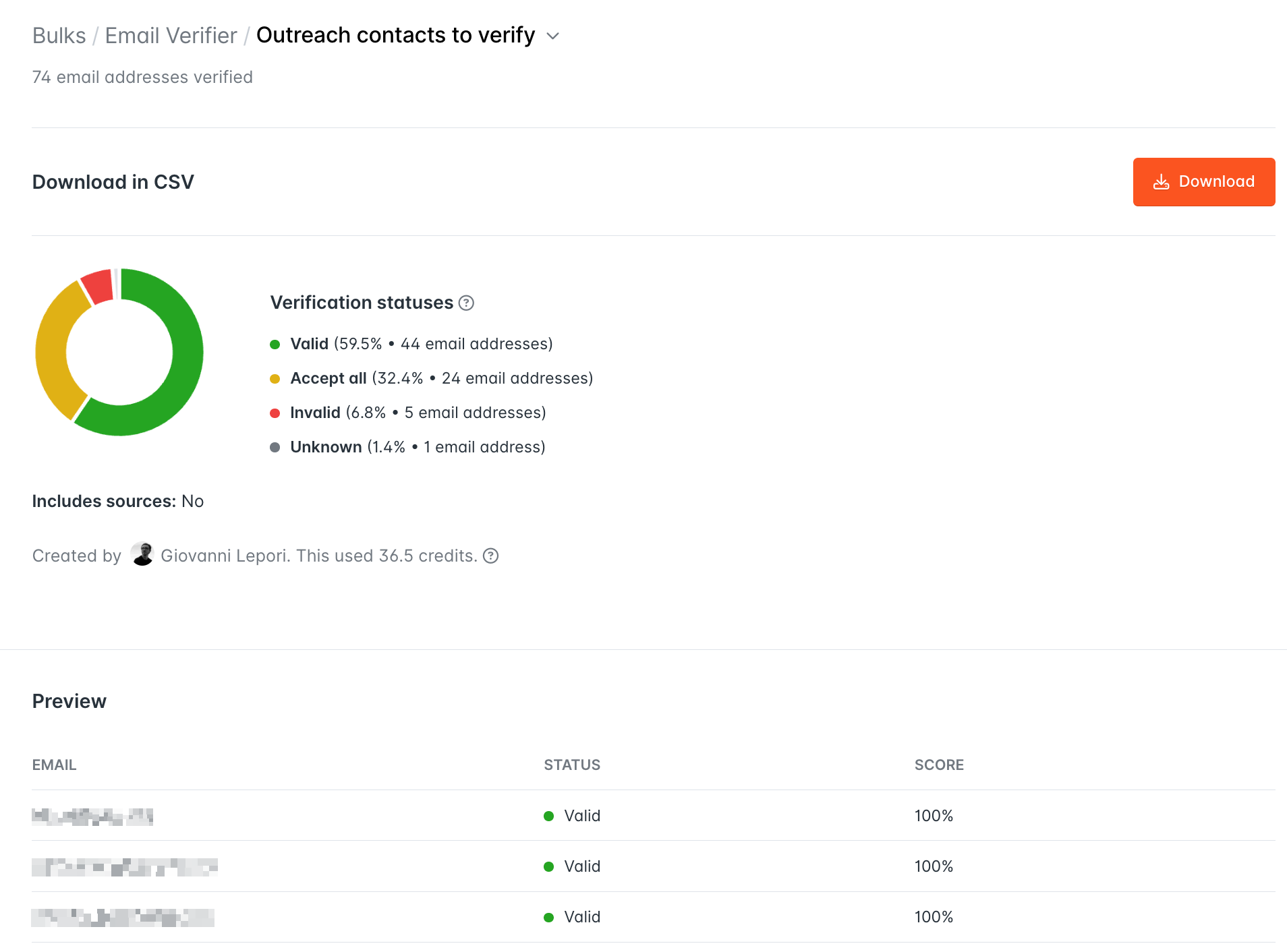
Hunter uses five verification statuses:
- Valid (green): safe to send
- Invalid (red): does not exist, remove immediately. These will always bounce
- Accept-All / Catch-All (yellow): the domain accepts all emails, so Hunter cannot confirm whether this specific mailbox exists. Use the Confidence Score to decide (see tip below)
- Disposable (blue): temporary address, remove it
- Unknown (grey): server did not respond. No credits are charged
Once verified, download your list, filter out all Invalid and Disposable addresses, and rebuild your Sequence audience from the remaining addresses.
Some general rules on verification
Confidence scores
Keep addresses scoring 85%+.
If recovering from a high bounce rate or warming a new domain, raise the bar to 90% until things stabilize.
Hunter automatically re-verifies saved leads every month on paid all-in-one outreach plans at no extra cost.
Accept-All emails
The confidence score reflects how likely an Accept-All address is to be real, based on the freshness and quality of its public sources.
While you can use these addresses, it's best to keep them in separate send lists for a sequence to limit the negative impact on your valid email list
Step 3: Verify recipients directly inside Sequences
Verifying your audience directly inside your Sequence is the most reliable workflow because it checks your actual send list, not an export.
- Go to Sequences → your sequence → Audience tab.
- If any recipients are unverified, a yellow banner shows the percentage.
- Click "Test all unverified email addresses" to verify in bulk.
Cost: 0.5 credits per address, shown before you confirm. Invalid addresses are automatically excluded from sending, even if they remain in your Audience list. Hunter handles this for you.
Step 4: Ramp back up with Progressive Sending
Even after cleaning your list, your sender reputation still needs time to recover.
Sending at full volume immediately restarts the damage.
Hunter's Progressive Sending feature handles this automatically for newly connected inboxes or inboxes unused for 30+ days.
- Go to Email Accounts Center inside Sequences → select the affected account → enable Progressive Sending.
- Hunter gradually increases your daily sending volume and pauses the ramp-up if your bounce rate exceeds the safe threshold.
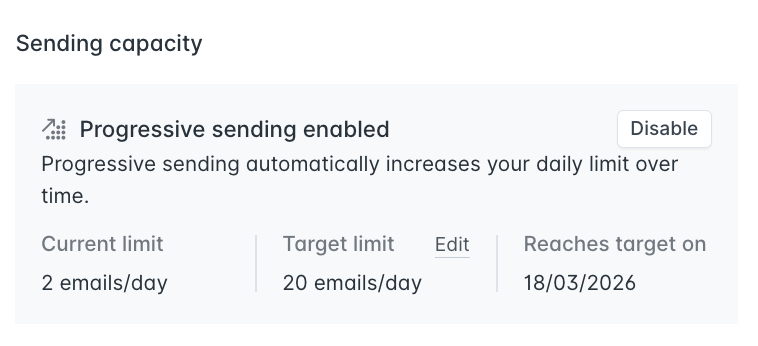
For inboxes that don't qualify for Progressive Sending, manually reduce your daily sending limit in the Email Accounts Center and increase it by ~10 emails/day each week, monitoring the bounce rate as you go.
Step 5: Don't overlook these two items
There are two additional factors that can impact your deliverability: what's inside your email and your email infrastructure.
Plain text vs HTML
HTML campaigns have a 652% higher bounce rate than plain text.
If your emails use tracking pixels, formatted signatures, or any HTML elements, like graphics or buttons, switch to plain text while your reputation recovers.
DNS authentication (SPF, DKIM, DMARC)
If your domain's authentication records are missing or misconfigured, receiving servers may reject your emails regardless of list quality.
Check your domain authentication status in Email Accounts Center inside Sequences.
What this looks like when it's working
After your next email send, check your bounce rate in Sequences:
- Below 2%: you're within the benchmark Hunter recommends. Maintain your pre-send verification habit going forward.
- 2–3%: your list still has dirty data. Filter out Unknown statuses and raise your Accept-All Confidence Score threshold to 90%.
- Still above 3%: the problem may be sender reputation rather than list quality.
Learn more with these resources:
- Check Google Postmaster Tools (https://postmaster.google.com) for Gmail
- Check Microsoft SNDS (https://sendersupport.olc.protection.outlook.com/snds/) for Outlook
- More guidance: https://hunter.io/blog/15-questions-and-answers-about-email-deliverability/
To start:
- List from Hunter Domain Search, Email Finder, or Discover? → pre-verified, low bounce risk
- Imported or purchased list? → run through Bulk Email Verifier before adding to any Sequence (see how)
- Leads older than 90 days? → re-verify in Leads section or Sequence Audience tab (see how)
- New inbox or inbox unused for 30+ days? → enable Progressive Sending (see how)
- Email format: plain text, no tracking pixel, no links in first message
- Sending to 500+ recipients? → split into segments of 50–100 and send over multiple days
Put all of this into action today with Hunter's Outreach Planner:



 Send cold emails with Hunter